 Search Tips
Search is based on keyword.
Ex: "Procedures"
Do not search with natural language
Ex: "How do I write a new procedure?"
Contact Support
PBSA POS Touch Screen Help Manual
Welcome to PBSA Touch manual. This section is focused on the simple steps required to setup your touch screen system.When it comes to the setup of your touch screen the objective is to simplify the sales process which is achieved by minimizing the number of clicks required to record the sale.
Simple definitions:
Touch Screen is used to refer to the main touch sales screen which is opened by clicking the "Launch Eziretail" button on the left hand side of the main "Point of sale screen".
Step 1.
Settings:
In settings you need to setup
1. Your touch screen settings
2. Create your till(s) in global settings and then set the current till in local settings
3. Create your price types
4. Set your printer settings
5. Set your cash drawer
6. Set your default customer
To open the settings form go to the file menu and choose settings.
1. Set up your touch screen settings
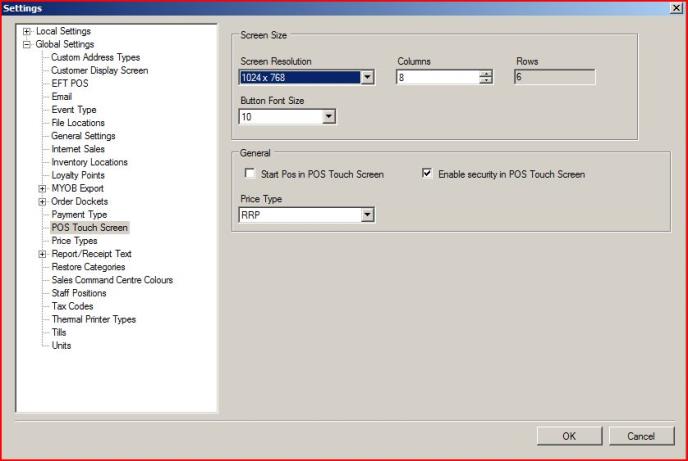
Then navigate to "POS Touch Screen" and choose your screen resolution which is generally 1024 X 786 for a touch screen. On making your selection this will set the recommended number of columns. You can alter this but you will need to check when you open the touch screen how this looks. Sometimes you may find that you need to switch the screen resolution back and forward between the options 1024 X 768 and 1280 X 1024.
On starting PBSA POS if you want the touch screen to automatically open, check the box "Start Pos in POS Touch Screen".
** It is important to note that if you select this option you should ensure your administrative and other user password are numerical as the password login field for the touch only displays a numerical key pad. If you make the mistake of not having numerical password you can connect a USB keyboard and enter the non numerical password and then go and change your passwords..
2. Create your Tills.
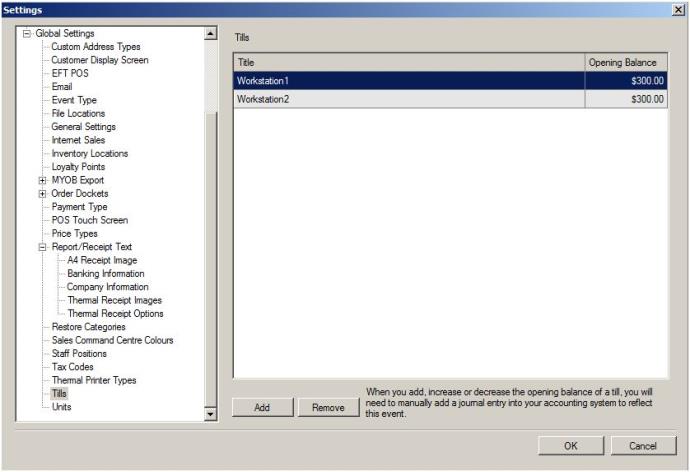
A. Go to Tills under global settings and click the add button and then enter a description for the till location and enter an opening balance. You need a till for each PC/Touch screen that you will be using in your store.
B. Expand the local settings option in settings and select "current till" and then select the till for this PC/Touch screen and click the "Make default" button. You should now see a tick icon next to the till for this PC/Touch screen
3. Create your price types
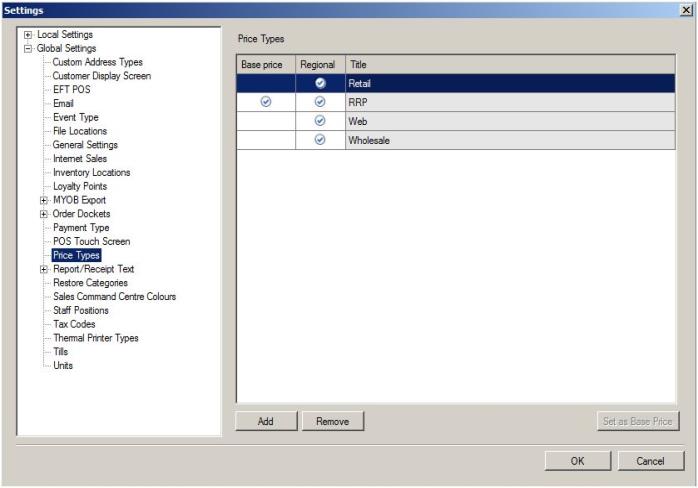
For most retail stores all you need is a RRP (recommended price) and a retail price. Set the RRP price as your base price by clicking the "Set as base price" button. In your pricing tab in your products area you will now set all your prices for your retail price NOT your base price (RRP).
4. Setup your printers
A. Go to global settings and "Report/Receipt Text" and add in your banking information, company information and then add your image for your receipt if you want your logo to appear.
Go to thermal receipt options and this is where you can enter your text to appear at the top and bottom of the thermal receipt and also set any images you want to appear on the receipt.
Note: The logo images you add to pos need to have a width of 256 pixels or less and the height can NOT be greater than 512 pixels. Your graphic designer will be able to assist you with your logo images if you require assistance.
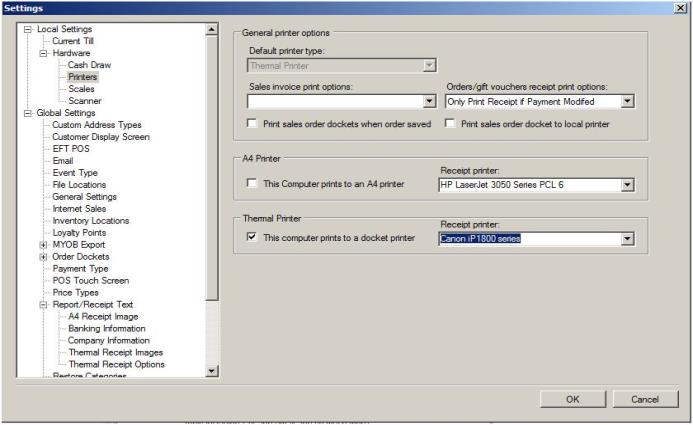
B. Go local settings, hardware and printers.
Tick the option for the thermal printer and then choose your printer.
Note: Your thermal printer needs to emulate the industry standard TM-88. If you are using a USB printer you normally install the printer using the supplied CD which adds a virtual com port and then you normally install the printer as brand - Generic and type Generic/Text printer. If you are using a serial printer then you just install the printer as a generic/text printer. In windows too will be given a prompt that ask if you would like to change or keep the existing driver, choose to change the driver.
Sometimes you will need to change the baud and bit rates for your printer. This is done via your windows systems settings for hardware and the particular port the printer is connected to. Many printers tell you the required settings in either the manual of by holding down the feed button while turning on the printer, which prints out the settings. If you have any issue please speak with your hardware supplier.
5. Cash Drawer
The cash drawer generally connects to your thermal printer not the PC/Touch screen unit. To enable the popping of your cash drawer through the PBSA POS software you need to set the cash drawer pop code which is supplied by your cash drawer/printer supplier.
For most TM-88 emulating printers the code is "1B 70 30 7D 7D". See the screen shot below.
6. Your default customer
All sales in PBSA POS are linked with a customer. TO make the sale process quick you set a default customer who is normally called "Cash sale" who is used by default with all sales. During the sales process you can enter a select the customer if you want to record the sales against a specific customer.
Step 2.
Create your products
If you refer to the main help section for PBSA POS you will see videos and help instructions on setting up products. There are 2 areas in in this section for PBSA POS touch which I will highlight.
1. All products require a part # (product code /SKU) so if you do not have a product code simply make one up. For example if you where selling Pizza then a suitable code for a large Chicken Barbeque could be LrgChBBQ01. The only requirement is that each product have a unique product code.
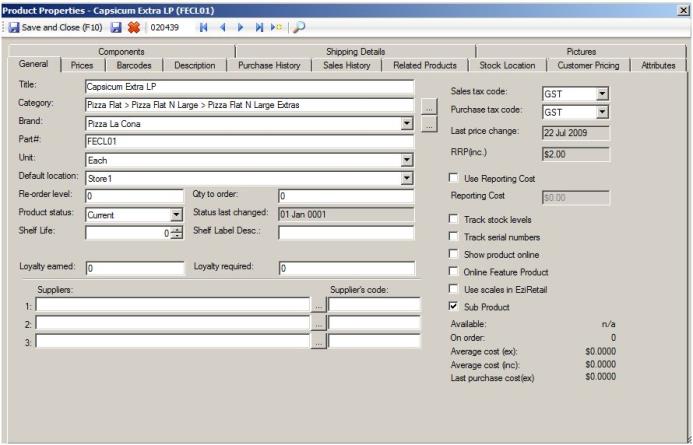
2. Sub products are used for products that are connected with another product. For example on a pizza or a hamburger you may extras such as pineapple, or for a coffee you may have more milk, no sugar etc. You may choose to set no price on some extras and a price on others. You also use sub products for options you wish to remove from a product such as a sub product "No anchovies".
What most fast food and cafes do is have 2 sub categories in the same category as their produces. For example you have a category called large pizza and this is where you add all your large pizza products. Then in this same category you create a sub category called "Extras" and another one called "remove". In the extras category you add all your extras by creating a product and marking the "sub product" check box as true. You also create products in the remove category. These products are now used to record details of extra or items to remove from the product during the preparation.
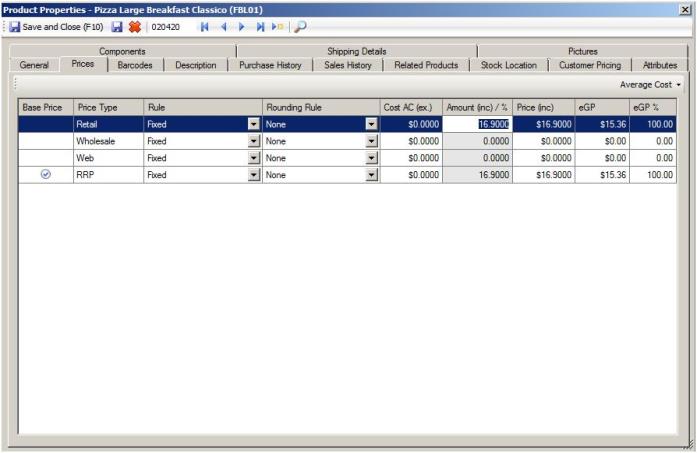
3. The prices tab.
For most touch screen operations all you need to do is go to the prices tab and click on the retail price row in the "Amount (inc) / %" column and enter your price for this product which will be used in PBSA POS Touch.
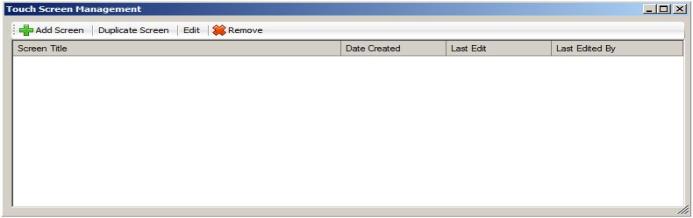
Step 3 Create your screens
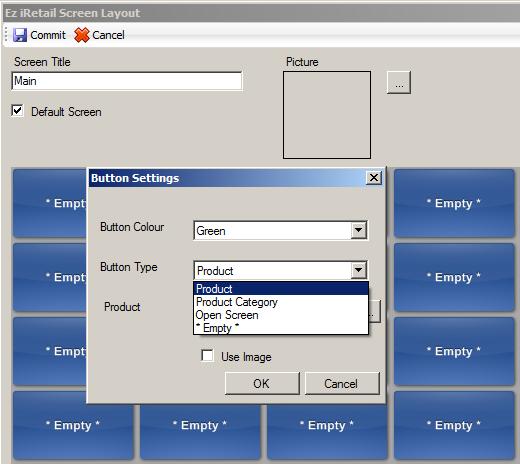
Go to the POS menu and down the bottom you will see the options "Setup Eziretail screens". On clicking this option you will be presented with the window below. Create your first screen by clicking the add screen button
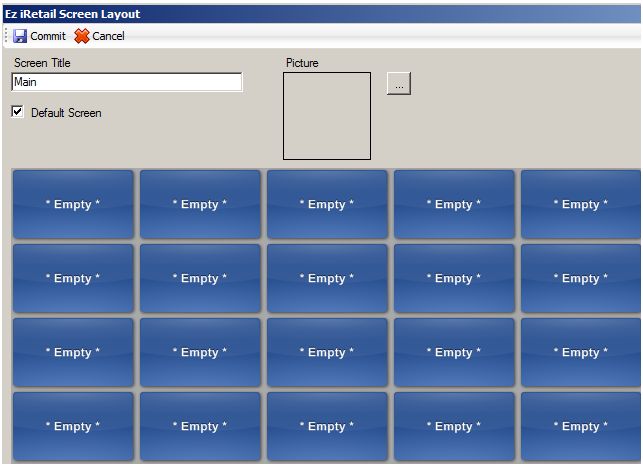
Enter the name of this screen. Most customer choose to call this first screen "Main" as it will be the first screen you see when you open the touch screen. You should also check the box default screen.. Now click the commit button.
Creating your buttons. You will see below that each button position shows a blue button with the word "Empty". Any button within this text will not show up on the touch screen.
To set a button up you click the button which opens up a window that provides 3 options.
A. Create a button that on touching it add a product to the screen
To achieve this click on a button, select the colour of the button from the first drop down, then select product from the second drop down.
Now click the ellipse button and select your product
B. Create a button that on touching takes you to a screen where blue buttons are automatically generated for each product in the category you have selected. To achieve this choose the colour of the button and then from the second drop down choose "category" and then click the ellipse button to open a screen and choose your product category
C. Create a button that takes you to another screen. To achieve this choose the colour of the button and then from the second drop down choose "screen" and then click the ellipse button to open up the screen selection form, now select the screen you want opened.
Step 4 Using the touch screen
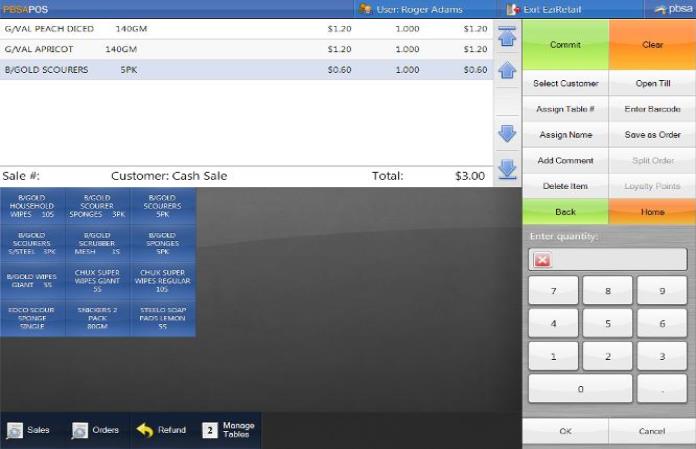
Using the PBSA POS Touch screen to process a sale is very simple. You click a button to add a product or to navigate to a product. If you are using a scanner you simply scan the product and the product is added to the sale screen.If you add a sub product / component product you will see that it is added to the screen underneath the related parent product with a + symbol. When the order docket prints out the receipt will be print out the items and the sub products in the same manner.
To save an order or to take a payment you click the commit button, which gives you the option to take payment. If you click take payment, select the payment amount and method and click OK. You will now get the option to print out a receipt for the customer and subject to your settings the order docket is printed out for your staff to prepare the order. This includes the option to have the order printed on multiple printers. For these more advanced features you need to contact PBSA POS support as part of your support package. (Provided you have purchased one)
Recording the table number - if you want the table number to appear on the order document click the "assign table" button and select/enter the table number. You can also click the manage table button and then select a table and click create order.
Selecting a customer and taking a phone pickup or delivery order
To select a customer click the "Select customer" button which open a customer window. If the customer is already in the system you can search for them and select them. If this is a new customer you click the add new button and then enter the customer details. Some businesses do not record a sale against a customer but just quote the order number to the customer. You also have the option of just adding a name to the order via the "Assign name" button which still links the order with the standard default customer "cash sale".
Now you are ready to add the items as part of the sale. To records this as an order click the "Save as order" button which will now become highlighted and then click the Commit button. This will prompt you if you would like to record a payment or not. In most cafe/businesses they do not take payment as this stage. Now that the order has been committed the order will be printed out for preparation.
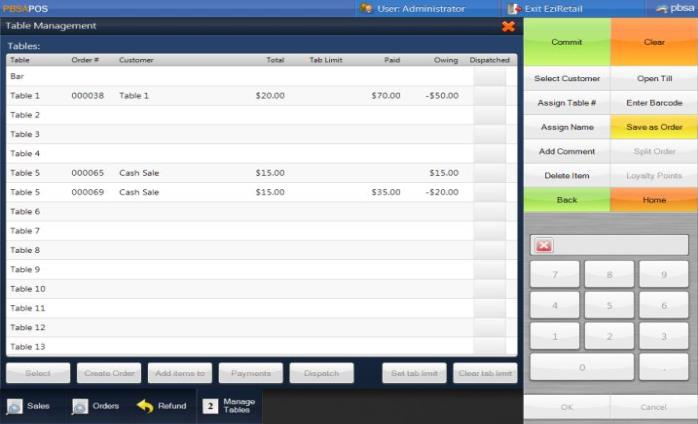
You can view all orders (sit down, phone and delivery) by clicking the orders button at the bottom of the screen. You can select any order and take payment on the order, you can also just dispatch the order without payment. You can select an order and alter the order by adding or adjusting or removing items. You can also view sales via the sales button.To view orders linked with tables or a bar tab, click the "Manage tables" button. Once an order has been paid for and disptached it will no longer appear as an order but it will now be a sale and can be searched for by clicking the sale button.
In a home delivery environment your delivery staff would dispatch the order which prints out a receipt including the customer address and phone contact details and then when they return with the payment and record the payment for the order.
Refund
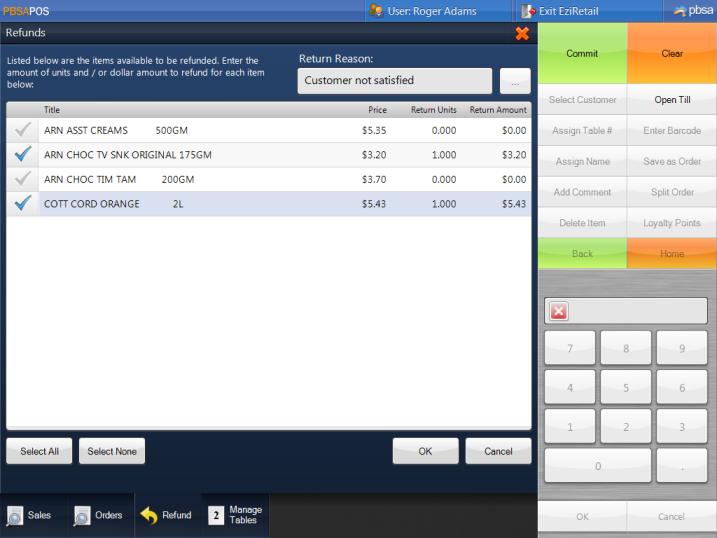
To complete a refund if the customer has a receipt you search for the sale via the receipt number and then select the sale. Now click the refund button and select the items you want to refund. If you want to do a refund without knowing the reciept you simply add the items you want to refund and then click the refund button.
Loyalty Points
If you have the loyalty points module enabled you need to select the customer by clicking the select customer button. Once the customer is selected if they have sufficient points to use for any items in the sale the "loyalty" points button will become enabled. The user can then click this button to open the screen where loyalty points can be used as a method of discount/payment of the purchase.
Switching the users, closing the till or switching to the PBSA POS administration section
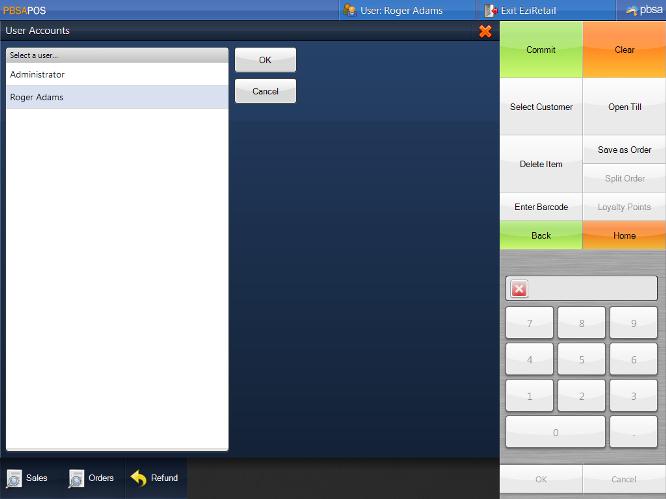
A. Switch users: To change the user you click the user at the top of the screen which opens the window shown below. Now click the user. If security is enabled you will need to enter your numeric password using the keypad.
Note: It is possible for one user to have a sale partially complete and then another users switches the user to themselves and does a sale and then the first user can change the user back to them and their original sale is still on the screen.
B. Close the till by clicking going to the back office and doing a till reconciliation,
These are the core functions of PBSA POS Touch, please refer to the main manual for more detailed information on the other elements of PBSA POS.